

Verify live on site
Questi contenuti non sono ancora disponibili nella tua lingua.
-
Open Live after saving the settings. If the receiver is off, press Start live (cold start: about a minute to the first fix). While the page is open the receiver stays on, even past the end of a scheduled session; leaving the page releases it.
-
Check the sky: satellites should appear in every sector (green wedges), mostly with strong signal (blue/green). The useful ones rise or set through the sector, sweeping elevation; a satellite that only skims it gives no arc (useful passes).
-
Check the signal strength: open sky is typically 35–50 dB-Hz; uniformly low values point to the antenna, cable or mounting.
-
Inspect a signal: click a satellite, a bar or an arc. The oscillation should be regular, with one clear peak in the periodogram.
-
Wait for closed arcs: they should close with pass and cluster around one height with a small sigma, close to your estimate or measurement.
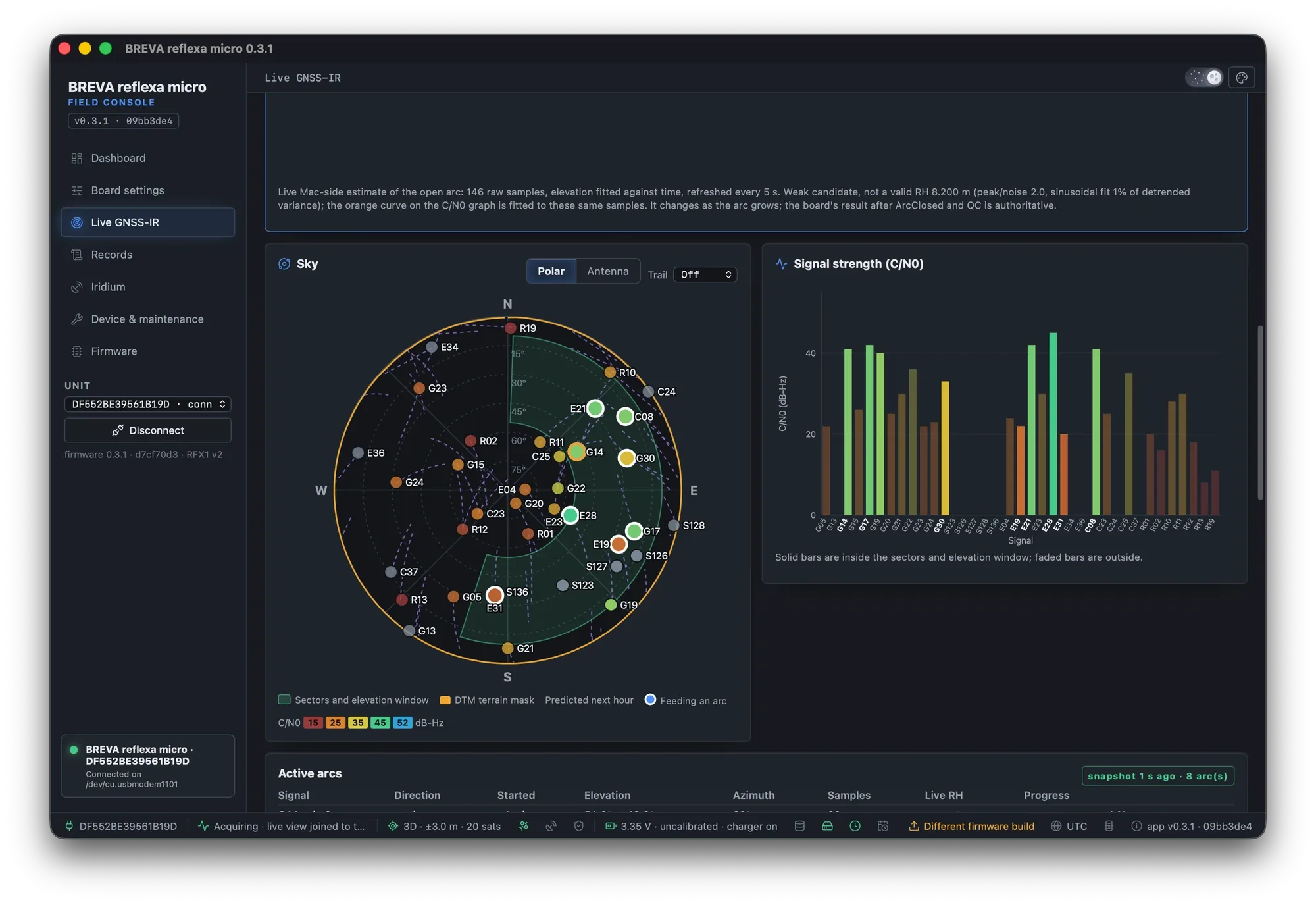
Test session: sky view with sectors (green), predicted tracks, C/N0 bars.
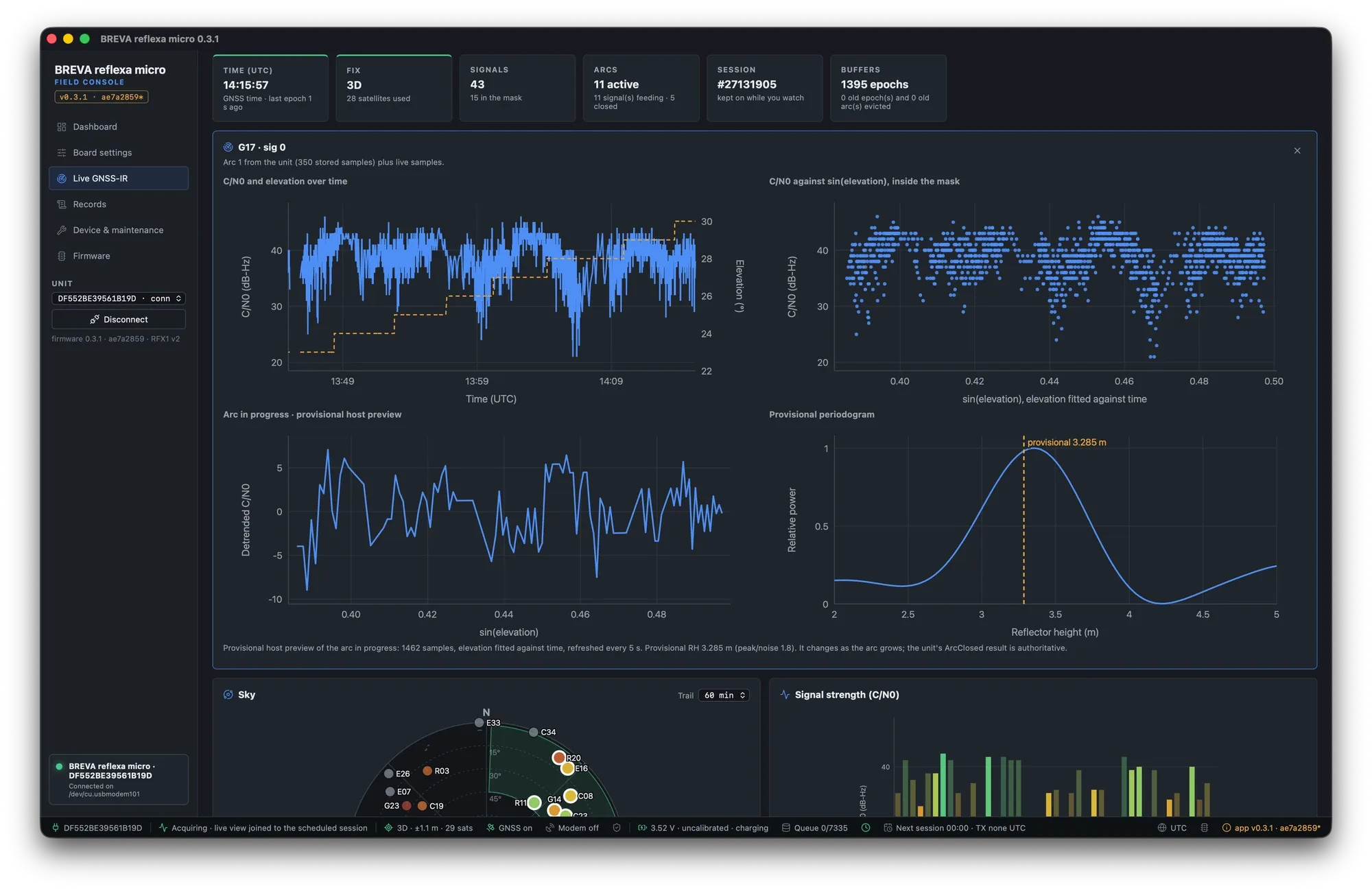
Arc inspector during a long pass: oscillation and provisional periodogram.
What a good installation looks like
Section titled “What a good installation looks like”Satellites appear in every sector, mostly green; arcs close with pass; accepted arcs cluster around one RH with small sigma. After three accepted arcs the Station page shows the measured height next to your estimate.
Signs of a problem
Section titled “Signs of a problem”- Satellites in a sector never appear, or only with weak (red) signal: the sector is obstructed or points the wrong way.
- Arcs close with fail for geometry or peak-to-noise reasons: too short a sweep of elevation, a reflected path obstructed by buildings or trees (the map’s terrain shadow does not show them), waves, or RH outside the search range (keep Auto, lengthen sessions).
- Periodograms with several peaks of similar size: more than one reflector in the sector (metal roofs, quays, cars).
More in Troubleshooting. Every element of the page is described in Live.