Quick start
This page is the short path. Each step links to the full guide or to the help page of the app screen you are on.
Before you go
Section titled “Before you go”You need:
- a reflexa micro unit (charged battery, solar panel connected for long installations);
- a computer with the field console installed (macOS, Windows or Linux) and a data-capable USB-C cable;
- optionally the map data pack (global offline lakes) on a USB stick, or Wi-Fi to download it;
- optionally a tape measure for the antenna height above the water (an estimate by eye is enough).
The site checklist is a printable one-page version of this list. For the site itself, take the field manual: these guides, the help pages of the Normal mode, troubleshooting and the checklist, offline.
For offline use on site: quick start, installation, verification, help pages, troubleshooting and a site checklist.
Install the field console
Section titled “Install the field console”Install the app from the USB stick or the Downloads page, then save the release access key: step by step in Install the field console. The app works without Internet; online it can also download satellite orbits, OpenStreetMap water, updates and the map data pack.
Open the .dmg (Apple silicon) and drag BREVA reflexa micro to Applications.
Unzip the Windows x64 package and run the installer it contains.
Unzip the Linux package and install the .deb (Ubuntu 22.04 and later).
New board from TAHMO
Section titled “New board from TAHMO”A new TAHMO WLM board runs TAHMO’s firmware: install reflexa micro first, once, in the workshop. If the unit comes as a kit, assemble it before. → First installation on a TAHMO WLM board
On site
Section titled “On site”-
Mount the unit where it sees the open sky and the water between about 5° and 45° of elevation, and fix it firmly. Measure the antenna height above the water with a tape if it is easy, otherwise estimate it by eye: it is not critical. → Install on site
-
Connect the unit over USB and start the app. With one unit it connects by itself and sets the unit clock if needed. → The field console
-
Aim at the water on the Station page: keep the position on Auto, drag across the compass toward the water to draw a sector, use an elevation window of about 5°–45°, enter the antenna height (measured, estimated by eye, or empty if unknown), keep the search range on Auto, then Save to station. → Station
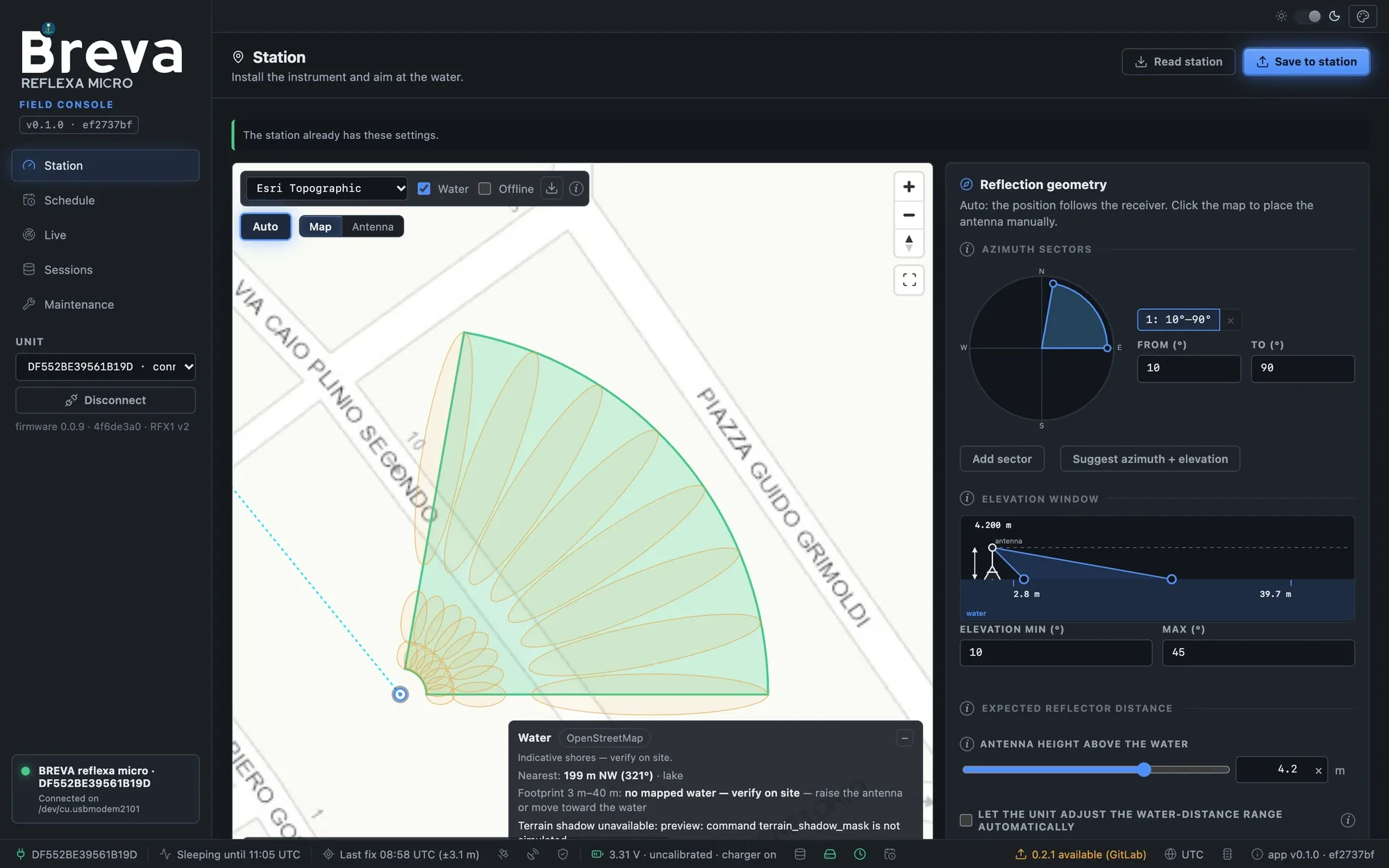
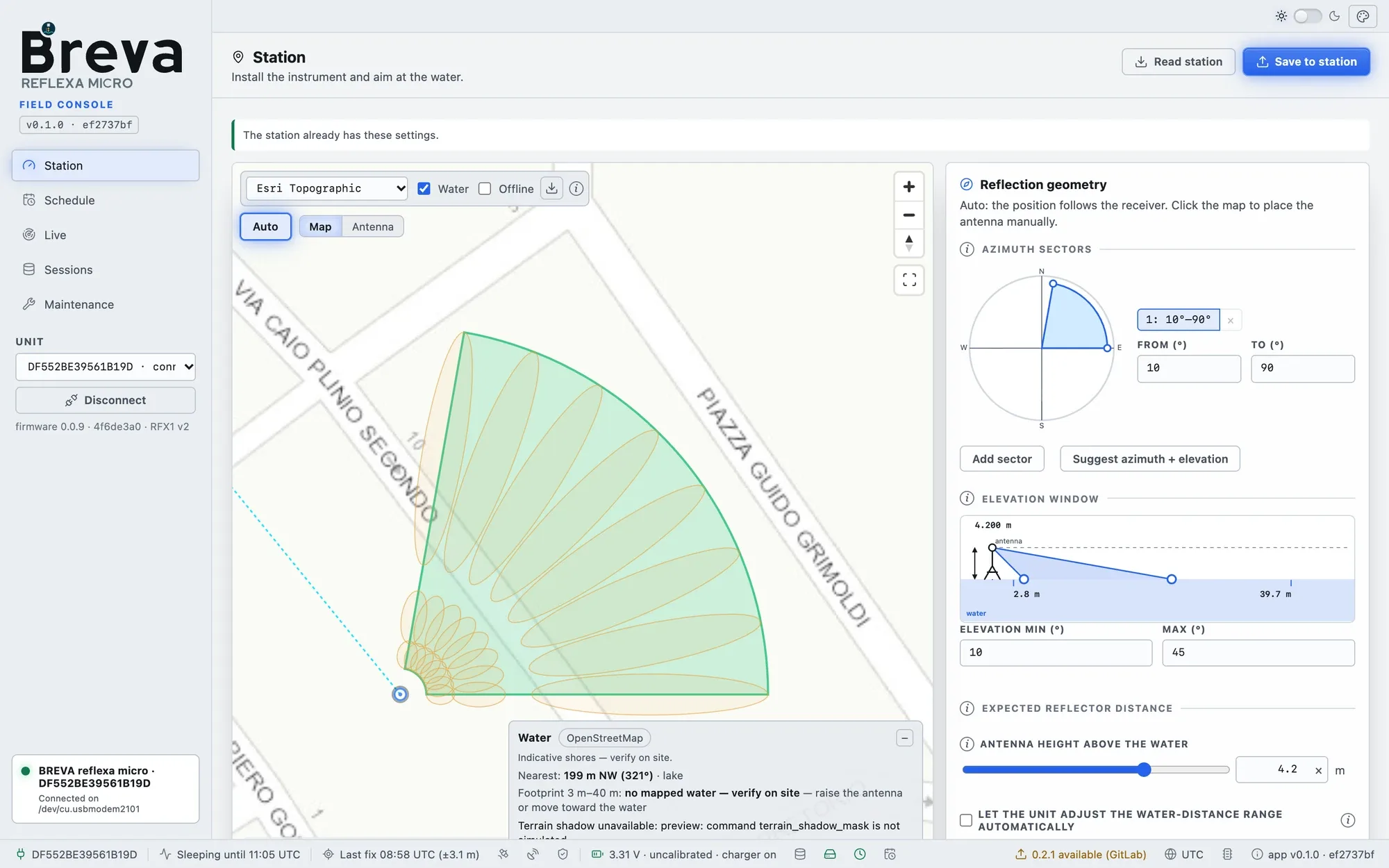
Simulator Station: sector toward the water, elevation window, antenna height, then Save to station.
-
Schedule the sessions: the Recommended preset (4 × 90 min) and Iridium sending at the end of each session are a good start. → Schedule
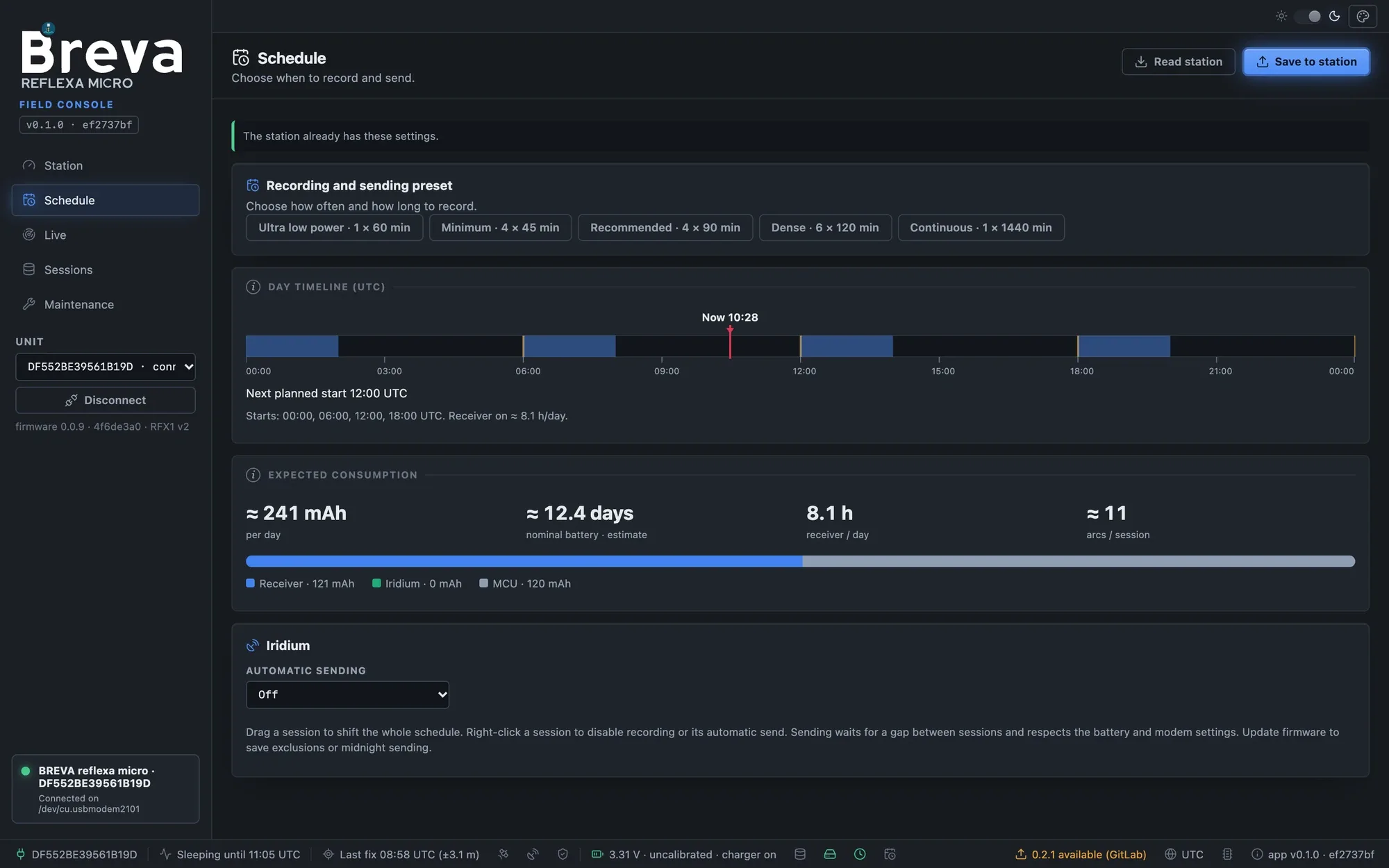
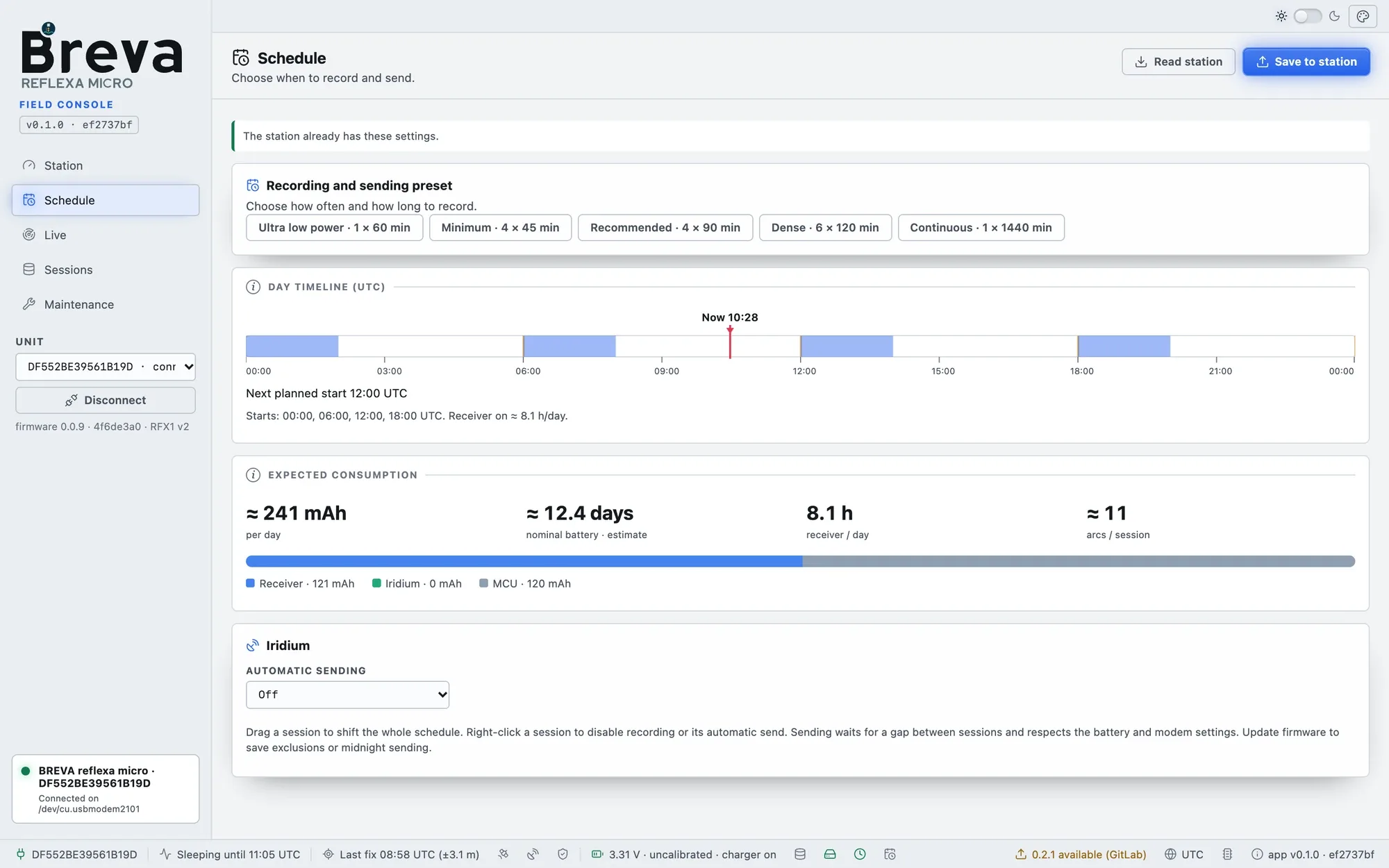
Simulator Schedule: preset, day timeline, expected consumption and Iridium sending.
-
Verify live before you leave: open Live, check that satellites cross every sector with good signal, and that the first arcs close with pass around one height. → Verify live
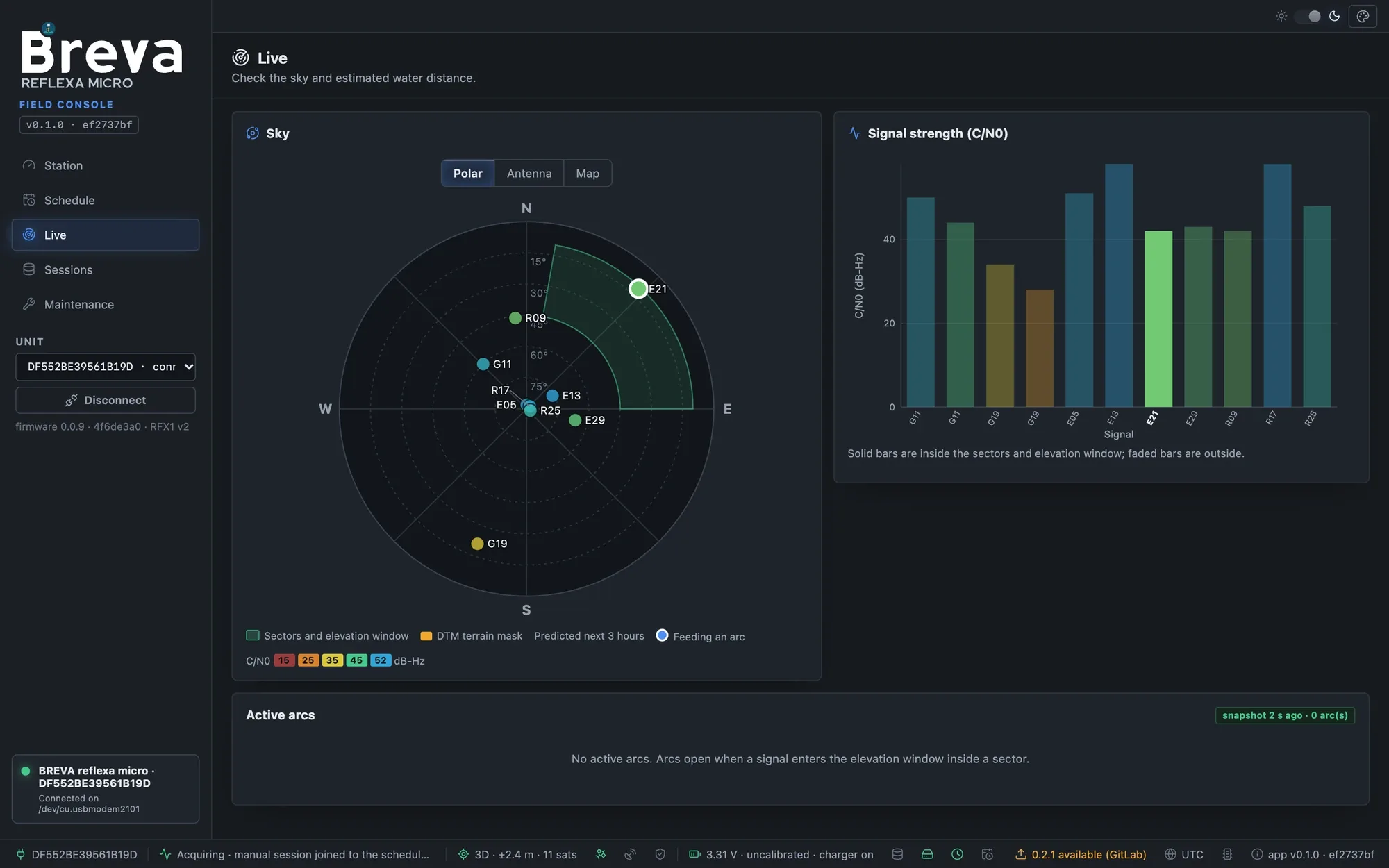
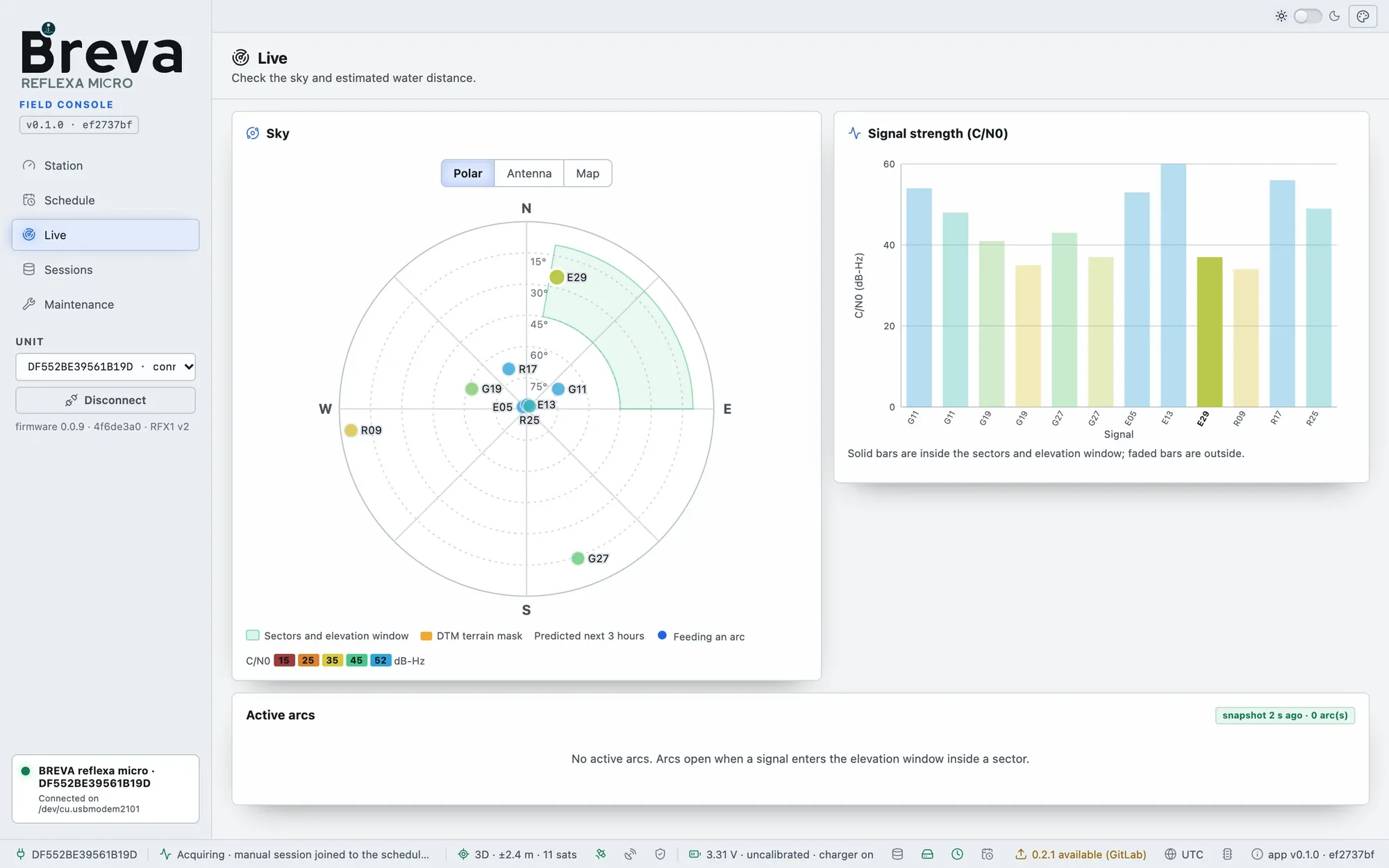
Simulator Live during a session: satellites crossing the sector and their signal strength.
-
Leave the unit running. Results arrive over Iridium after each session; the full arcs stay on the unit until you download them. → Iridium setup